Teamviewer Remote Support Instructions
Un processus simple.
Voici les étapes à suivre :
1. Download and Install Teamviewer
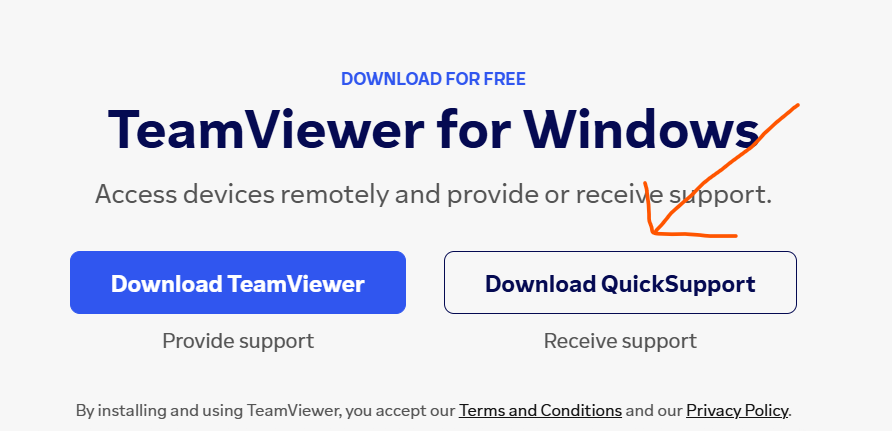
- If you haven’t already, download and install the TeamViewer application on your computer. You can find the official Teamviewer website and download the software from there.
- Téléchargement direct (Mac & Windows available)
- Make sure you download "Download QuickSupport" to receive support
2. Launch Teamviewr
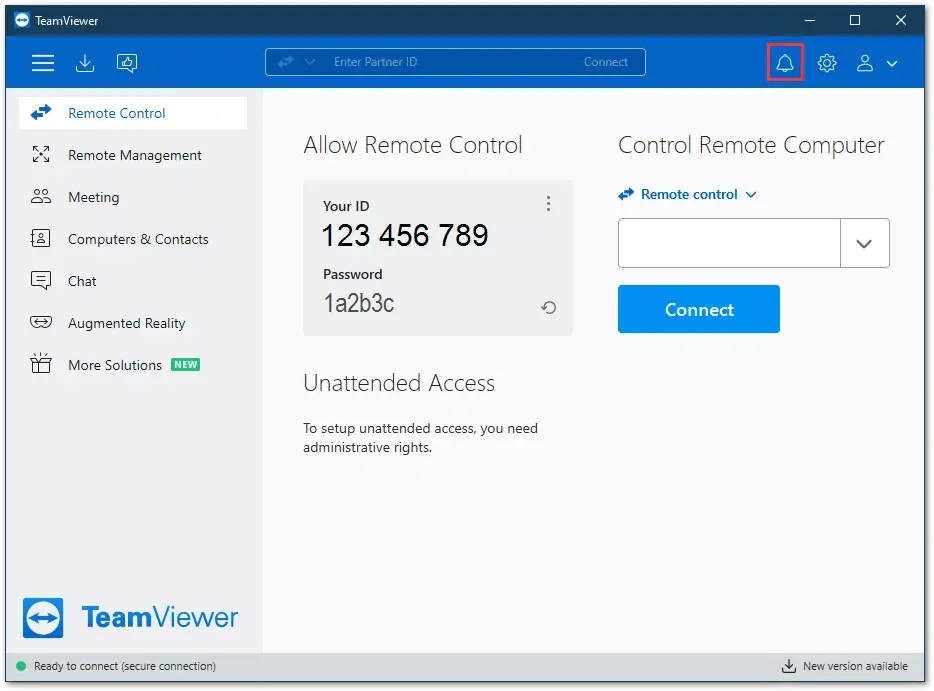
- After installation, launch the Teamviewer application. You will see the Teamviewer main window with your unique Teamviewer code and password.
3. Share Your TeamviewerÏD (Your ID)
- Communicate your Teamviewer code via to the person who will be providing remote support. (Whatsapp or Email) They will need this unique code to connect to your computer.
4. Accorder des autorisations :
- When the support person initiates a remote support session and enters your Teamviewer code you will receive a prompt on your screen asking for permission to allow the connection. Make sure to grant the necessary permissions for the support person to access your computer.
5. Contrôle de session :
- Une fois la connexion établie, la personne de support pourra voir et contrôler votre bureau. Elle pourra diagnostiquer des problèmes, apporter des modifications et fournir de l'aide si nécessaire.
6. Terminer la session :
- À tout moment pendant la session de support à distance, vous avez le contrôle pour mettre fin à la connexion. Vous pouvez le faire en cliquant sur le bouton rouge "X" dans la barre d'outils AnyDesk ou en fermant l'application AnyDesk.
7. Restez conscient et en sécurité :
- Always ensure you are inviting someone you trust for remote support. Avoid giving access to unknown or suspicious individuals. Teamviewer is secure, but it’s crucial to be cautious about the people you allow to access your computer remotely.
Remember, while Teamviewer is user-friendly, it’s essential to prioritize your online security. Only share your Teamviewer address with authorized and trusted individuals.
Once the session is closed, nobody can access your computer remotely via Teamviewer anymore without your permissions.
Planifier un support à distance