Teamviewer Remote Support Instructions
A straightforward process.
Here are the steps to follow:
1. Download and Install Teamviewer
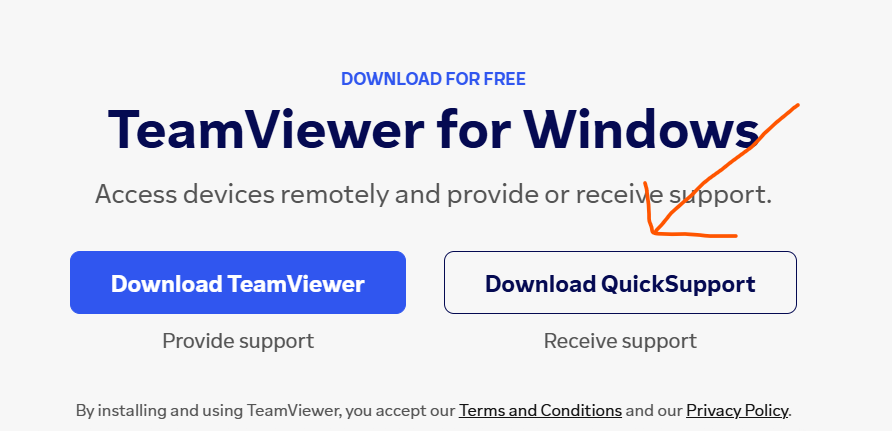
- If you haven’t already, download and install the TeamViewer application on your computer. You can find the official Teamviewer website and download the software from there.
- Direct Download (Mac & Windows available)
- Make sure you download "Download QuickSupport" to receive support
2. Launch Teamviewr
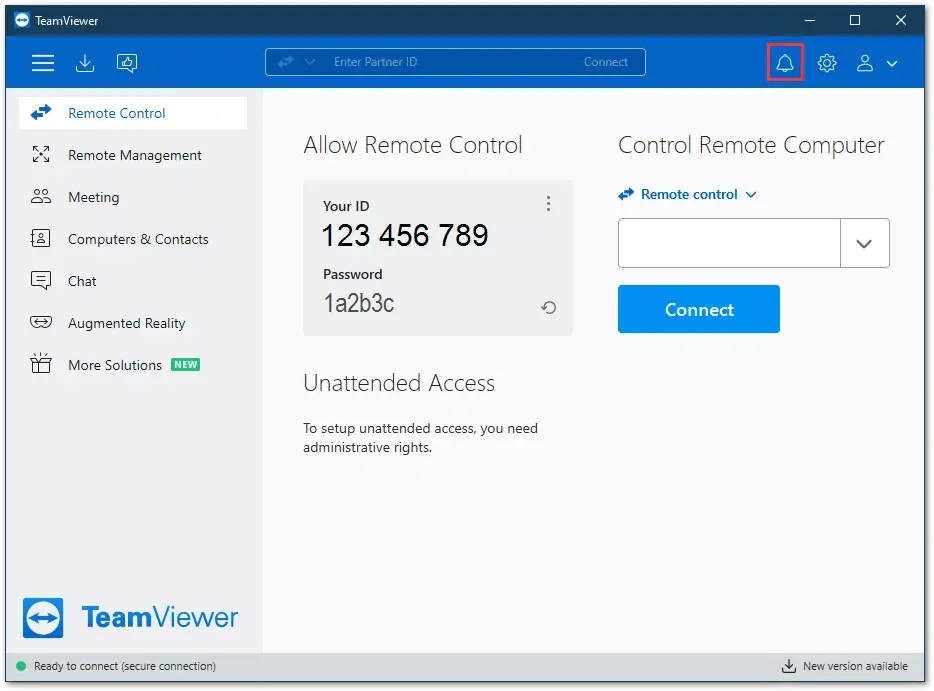
- After installation, launch the Teamviewer application. You will see the Teamviewer main window with your unique Teamviewer code and password.
3. Share Your TeamviewerÏD (Your ID)
- Communicate your Teamviewer code via to the person who will be providing remote support. (Whatsapp or Email) They will need this unique code to connect to your computer.
4. Grant Permissions:
- When the support person initiates a remote support session and enters your Teamviewer code you will receive a prompt on your screen asking for permission to allow the connection. Make sure to grant the necessary permissions for the support person to access your computer.
5. Session Control:
- Once the connection is established, the support person will be able to view and control your desktop. They can diagnose issues, make changes, and provide assistance as needed.
6. End the Session:
- At any point during the remote support session, you have the control to end the connection. You can do this by clicking the red “X” button in the AnyDesk toolbar or closing the AnyDesk application.
7. Stay Aware and Secure:
- Always ensure you are inviting someone you trust for remote support. Avoid giving access to unknown or suspicious individuals. Teamviewer is secure, but it’s crucial to be cautious about the people you allow to access your computer remotely.
Remember, while Teamviewer is user-friendly, it’s essential to prioritize your online security. Only share your Teamviewer address with authorized and trusted individuals.
Once the session is closed, nobody can access your computer remotely via Teamviewer anymore without your permissions.